Original by Simon Lockyer · . The worked examples and guidance above the original text are a new editorial edition from 20 October 2026.
A flip card that works beyond hover
The original tutorial used jQuery to toggle a class. The same effect can now use a native button and a few lines of JavaScript. Keep the control outside the rotating surfaces, make its state explicit, and never hide essential instructions exclusively on the back.
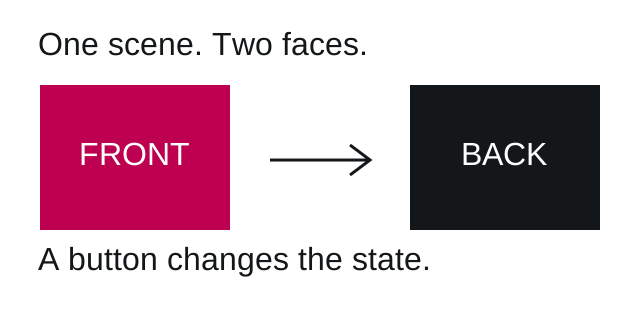
The front shows the SL monogram. The back shows HTML, CSS and JS. The animation is a demonstration; this description carries the same information without motion.
Build the three layers
- The outer scene provides perspective.
- The inner wrapper preserves the 3D space and rotates.
- Two faces occupy the same area. Hide each face when its back points toward the viewer.
.scene { perspective: 1000px; }
.card { transform-style: preserve-3d;
        transition: transform .7s; }
.face { backface-visibility: hidden; }
.back { transform: rotateY(180deg); }
.is-flipped .card { transform: rotateY(180deg); }
@media (prefers-reduced-motion: reduce) {
  .card { transition: none; }
}
Keep interaction predictable
Use a real button with aria-pressed. Space and Enter should work automatically. If the hidden face contains links or inputs, remove them from keyboard navigation while hidden; a CSS transform alone does not do that. This demonstration uses decorative faces and a separate text equivalent, so no focusable controls disappear behind the card.
Respect reduced-motion preferences. Do not make hover the only way to reveal a price, a warning or an action. Check touch, keyboard and a no-JavaScript page separately.
References: MDN: backface-visibility; W3C: animation from interactions. Editorial implementation, 20 October 2026.
Use the complete example
The three-file example contains a working HTML page, CSS and JavaScript. It has no external dependencies, a keyboard-operable button, an explicit pressed state and a reduced-motion rule.
Download the complete modern example
Read the original 2013 article


Recently I have had many comments on how I create the flipping logo at the top of this website. If you haven’t seen the effect just hover over the badge below the title. It’s fairly simple to do with CSS3 so I have written this tutorial so you guys can see how it’s done.
Planning
First of all lets just talk about the theory of what we are going to do. We need two divs that hold the two images, for the tutorial I am just going to use my logo. We need to absolutely position the divs so they are “stacked: directly on top of each other so it looks like there is only one logo. Then the magic of CSS3 transitions and transforms will give us the final effect with a little help from jQuery. Lets get started.
HTML
The following html has a container div then two divs inside it which hold the two images. The idea is that the div class “back” will be positioned behind the div with class “front”. We will then flip the divs so that the front becomes the back and the back becomes the front, with me so far?
<div class="hover panel">
	<div class="front">
		<div class="pad">
			<img src="http://simonlockyer.info/wp-content/themes/DOD_BLANK/images/logo-front.png" alt="logo front" />
		</div>
	</div>
	<div class="back">
		<div class="pad">
			<img src="http://simonlockyer.info/wp-content/themes/DOD_BLANK/images/logo-back.png" alt="logo back" />
		</div>
	</div>
</div>
CSS
The CSS is the really important part in this and actually its really simple. We first make sure the divs with the images are stacked perfectly on top of each other. Like so:
.panel {
	margin: 0 auto;
	width: 130px;
	height: 130px;
	position: relative;
	font-size: .8em;
	-webkit-perspective: 600px;
	-moz-perspective: 600px;
}
.panel .front {
	position: absolute;
	top: 0;
	z-index: 900;
	width: inherit;
	height: inherit;
	text-align: center;
}
.panel .back {
	position: absolute;
	top: 0;
	z-index: 800;
	width: inherit;
	height: inherit;
}
We then need to bring it all together and add the css3 rotation values to make the divs flip. As I wanted the image to flip horizontally we only need to modify the Y axis values (its quite fun to play with both the X and Y axis values to see what effect you can come up with).
First of all the front div we need to se the Y axis value to 0 as its being shown. The back div we need to set to be -180 as we are only flipping the div half way round to show the other.
Then its very easy to add the effect, just reverse the rotation values, so the back’s Y value becomes 0 and the front divs Y value becomes -180. It may sound confusing but its very easy. See below for the all of the CSS.
.panel {
	margin: 0 auto;
	width: 130px;
	height: 130px;
	position: relative;
	font-size: .8em;
	-webkit-perspective: 600px;
	-moz-perspective: 600px;
}
/* -- make sure to declare a default for every property that you want animated -- */
/* -- general styles, including Y axis rotation -- */
.panel .front {
	position: absolute;
	top: 0;
	z-index: 900;
	width: inherit;
	height: inherit;
	text-align: center;
	-webkit-transform: rotateX(0deg) rotateY(0deg);
	-webkit-transform-style: preserve-3d;
	-webkit-backface-visibility: hidden;
	-moz-transform: rotateX(0deg) rotateY(0deg);
	-moz-transform-style: preserve-3d;
	-moz-backface-visibility: hidden;
	/* -- transition is the magic sauce for animation -- */
	-o-transition: all .4s ease-in-out;
	-ms-transition: all .4s ease-in-out;
	-moz-transition: all .4s ease-in-out;
	-webkit-transition: all .4s ease-in-out;
	transition: all .4s ease-in-out;
}
.panel.flip .front {
	z-index: 900;
	-webkit-transform: rotateY(180deg);
	-moz-transform: rotateY(180deg);
}
.panel .back {
	position: absolute;
	top: 0;
	z-index: 800;
	width: inherit;
	height: inherit;
	-webkit-transform: rotateY(-180deg);
	-webkit-transform-style: preserve-3d;
	-webkit-backface-visibility: hidden;

	-moz-transform: rotateY(-180deg);
	-moz-transform-style: preserve-3d;
	-moz-backface-visibility: hidden;
	/* -- transition is the magic sauce for animation -- */
	-o-transition: all .4s ease-in-out;
	-ms-transition: all .4s ease-in-out;
	-moz-transition: all .4s ease-in-out;
	-webkit-transition: all .4s ease-in-out;
	transition: all .4s ease-in-out;
}
.panel.flip .back {
	z-index: 1000;
	-webkit-transform: rotateX(0deg) rotateY(0deg);
	-moz-transform: rotateX(0deg) rotateY(0deg);
}
jQuery
All we need to add now is the jQuery that adds the class “flip” to the first div. This actives the css3 code and makes the div flip, like so:
<script type="text/javascript">
  		$(document).ready(function(){
  		   // set up hover panels
  		   // although this can be done without JavaScript, we've attached these events
  		  // because it causes the hover to be triggered when the element is tapped on a touch device
  		$('.hover').hover(function(){
  			$(this).addClass('flip');
  		},function(){
  			$(this).removeClass('flip');
  		});
  	});
 </script>
Round Up.
Really the effect is very simple. But I love minimalist design so little effects like this that aren’t always noticed but add a bit of flare are a great addition. The full page of HTML and CSS is below. If anyone needs the files just drop me a message.
<!doctype html>
<html lang="en">
<head>
  <meta charset="utf-8">
  <title>Flip the div</title>
  <meta name="description" content="The HTML5 Herald">
  <meta name="author" content="SitePoint">
  	<script src="http://code.jquery.com/jquery-1.9.1.min.js"></script>
  	<script type="text/javascript">
  		$(document).ready(function(){
  			// set up hover panels
  			// although this can be done without JavaScript, we've attached these events
  			// because it causes the hover to be triggered when the element is tapped on a touch device
  			$('.hover').hover(function(){
  				$(this).addClass('flip');
  			},function(){
  				$(this).removeClass('flip');
  			});
  		});
  	</script>
	<style>
		.panel {
			margin: 0 auto;
			width: 130px;
			height: 130px;
			position: relative;
			font-size: .8em;
			-webkit-perspective: 600px;
			-moz-perspective: 600px;
		}
		/* -- make sure to declare a default for every property that you want animated -- */
		/* -- general styles, including Y axis rotation -- */
		.panel .front {
			position: absolute;
			top: 0;
			z-index: 900;
			width: inherit;
			height: inherit;
			text-align: center;
			-webkit-transform: rotateX(0deg) rotateY(0deg);
			-webkit-transform-style: preserve-3d;
			-webkit-backface-visibility: hidden;
			-moz-transform: rotateX(0deg) rotateY(0deg);
			-moz-transform-style: preserve-3d;
			-moz-backface-visibility: hidden;
			/* -- transition is the magic sauce for animation -- */
			-o-transition: all .4s ease-in-out;
			-ms-transition: all .4s ease-in-out;
			-moz-transition: all .4s ease-in-out;
			-webkit-transition: all .4s ease-in-out;
			transition: all .4s ease-in-out;
		}
		.panel.flip .front {
			z-index: 900;
			-webkit-transform: rotateY(180deg);
			-moz-transform: rotateY(180deg);
		}
		.panel .back {
			position: absolute;
			top: 0;
			z-index: 800;
			width: inherit;
			height: inherit;
			-webkit-transform: rotateY(-180deg);
			-webkit-transform-style: preserve-3d;
			-webkit-backface-visibility: hidden;

			-moz-transform: rotateY(-180deg);
			-moz-transform-style: preserve-3d;
			-moz-backface-visibility: hidden;
			/* -- transition is the magic sauce for animation -- */
			-o-transition: all .4s ease-in-out;
			-ms-transition: all .4s ease-in-out;
			-moz-transition: all .4s ease-in-out;
			-webkit-transition: all .4s ease-in-out;
			transition: all .4s ease-in-out;
		}
		.panel.flip .back {
			z-index: 1000;
			-webkit-transform: rotateX(0deg) rotateY(0deg);
			-moz-transform: rotateX(0deg) rotateY(0deg);
		}
	</style>
</head>
<body>
	<div class="hover panel">
		<div class="front">
			<div class="pad">
				<img src="http://simonlockyer.info/wp-content/themes/DOD_BLANK/images/logo-front.png" alt="logo front" />
			</div>
		</div>
		<div class="back">
			<div class="pad">
				<img src="http://simonlockyer.info/wp-content/themes/DOD_BLANK/images/logo-back.png" alt="logo back" />
			</div>
		</div>
	</div>

</body>
</html>
Original archived capture. Historical prices, donation requests, browser workarounds and external links are retained as context, not current offers.