Original by Simon Lockyer · . The worked examples and guidance above the original text are a new version from 20 October 2026.
Find the bottleneck before changing the site
The 2013 article is preserved below. For a present-day investigation, record a baseline and separate slow server responses from large downloads and busy browser work. WordPress performance depends on the hosting, configuration, theme, plugins and media; installing another optimisation plugin is not a diagnosis.
A repeatable investigation
- Choose three real pages: the homepage, a typical article and a page with a form. Test logged out, in the same browser and network conditions.
- In the browser network panel, record the document response time, the largest image, transferred bytes and failing requests. Save the run rather than relying on memory.
- If the document arrives slowly, inspect hosting limits, server logs and the existing page cache with the responsible administrator. Keep logged-in and personalised content out of shared caches.
- If the document is quick but the page appears late, inspect image dimensions, file size, fonts and render-blocking resources.
- Try one reversible change on a staging copy. Repeat the same checks, then verify forms, menus and editing before publication.
Keep a small change log
Page and test conditions:
Before: document response / image bytes / visible behaviour
Suspected cause and evidence:
One change:
After: same measurements and conditions
Functional checks:
Keep or revert, and why:
For example, a 2400-pixel image displayed in a small thumbnail is a reason to inspect responsive image output. It is not evidence that the database needs tuning. A slow first request followed by fast cached requests is a different observation from every request being slow.
Reference: WordPress performance handbook. procedure, 20 October 2026. No benchmark improvement is claimed for a real client.
Read the original 2013 article
Recently I have come across a number of websites that seem to have ridiculous load times; on further inspection most of them are built on WordPress! Now I no that some large multi national organizations use WordPress as a base, such as the new CNN Political ticker website and IBN live, however these business’s can afford huge dedicated servers and content delivery networks. Some of us host our WordPress sites on shared hosting servers, which is where it can run into problems.
First of all it’s worth to take into consideration that WordPress has a large codebase, and the more code there is the longer it will take to load! There are a few steps that I have used to speed up WordPress sites in the past. This article looks to show you a number of things that can help you maximize your WordPress website load time in a few easy steps.
Validate your theme
To ensure that your theme will load as quickly as possible it is good practice to validate your theme as you develop it. There are a number of tools out there to help you ensure your theme complies with the latest WordPress standards. Personally I like to use the plugin Theme-check
The Theme-check plugin provides a valuable debug tool that shows easy to understand error messages. Generally it shows some errors that cannot be helped, for example it shows errors if you have hard coded links, which sometimes cannot be helped.
Plugins, comments and posts
The installation of lots of plugins can have a significant impact to your WordPress website load time. Try to keep the number of installed plugins to a minimum and delete unused ones. I do try to write most things myself to ensure I know what is going on however sometimes it can save a lot of time and effort to find a pre-written plugin.
Undoubtedly if you run a WordPress site you will have had some kind of spam via the comments section of your website. Cleaning the spam comments and deleting them from the database can optimize the database and speed up the load time of the website.
As spam comments, post/page revisions saved in the database can create a very large database that is unnecessary. Make sure you are happy with all your pages and posts before deleting the revision history! A very useful plugin to assist you in this is can be found here better delete revision
Caching
Caching in its simplest form is a saved “image” of your website that is displayed to a user looking at your website without the page requesting data from the database.
When WordPress loads a page, a lot of requests are made between the web page and database. The use of a caching plugin can speed up the load time of a page as it displays a copy of the page and by passes the database queries.
There are a great number of plugins to help you with caching; my favorite however is W3 Total Cache
You can run into some problems while developing if this is activated. I have many times made changes to a theme, saved and uploaded the files to find my changes aren’t working. After a period of panic and annoyance I find out that I am seeing a cached copy. So turn the plugin off if you are about to make changed to your theme!
Test!
There are a number of ways to test your WordPress site to see what is taking the time to load. The web tool Pingdom Tool allows you to input a URL which is then testing to produce a report. This can show you which of your files are taking the time to load, that can then be optimized. For example if you a JavaScript file included that is very bulky and takes a long time to load you could minimize the file to optimize the page load time.
Conclusion
There are so many factors that can impact a WordPress website’s performance. The points made previously have helped me in the past optimize my WordPress websites. Please comment with other ideas and techniques and share your knowledge!
Original archived capture. Historical prices, donation requests, browser workarounds and external links are retained as context, not current offers.
Keep exploring
More field notes · Illustration and typography resources
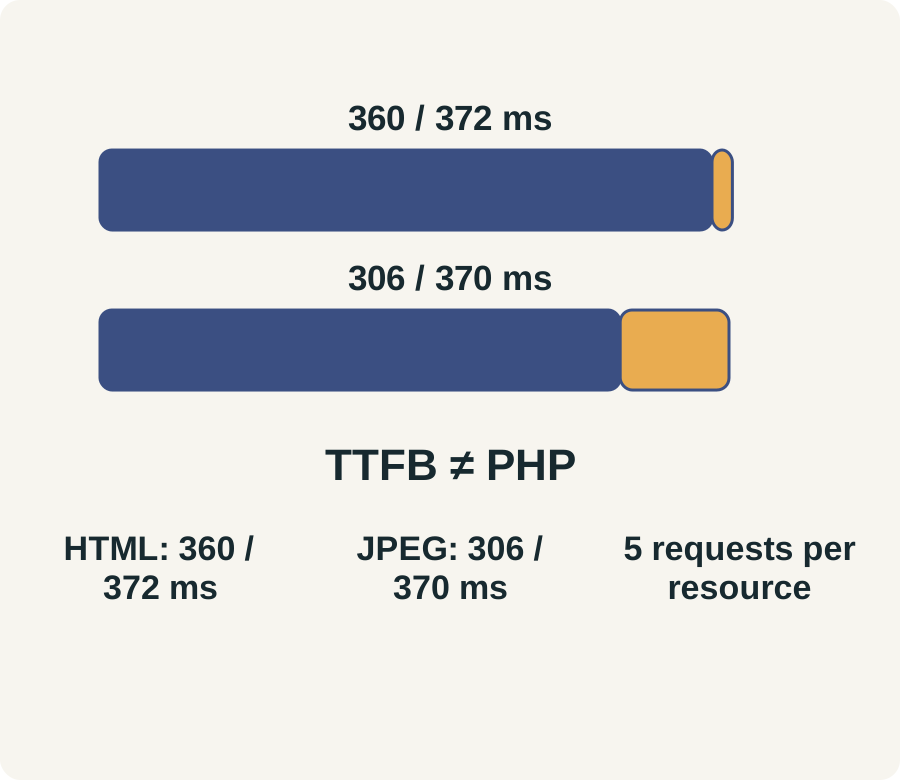
Read two request timings without calling TTFB PHP time
This measurement example separates a document request from an image request. It does not diagnose the historical WordPress installation. On 28 October 2026, five independent curl requests fetched this current static article and five fetched the author-profile portrait JPEG. The portrait is a separate resource, not an image embedded in this article.

- HTML article · median of 5 requests
- 12 763 bytes; first byte 360 ms; total 372 ms.
- Author portrait JPEG · median of 5 requests
- 42 497 bytes; first byte 306 ms; total 370 ms.
- Record the URL, time, network conditions and tool. Here, each curl process used a new request from the operator’s Mac; no throttling or cache purge was applied. The region was not independently established.
- Read
time_starttransferas elapsed time until the first byte. It includes earlier connection work and network/CDN effects; it is not a measurement of PHP execution alone. - Compare the total time and body bytes for each resource. Do not add these two medians to predict page load: a browser may overlap requests, reuse connections and use cached resources.
- Repeat with one controlled change and the same URLs before claiming an improvement. Inspect the browser resource timeline for the page’s actual dependencies.
Repeatable command
curl -sS --max-time 25 -o /dev/null -w '%{http_code} %{size_download} %{time_namelookup} %{time_connect} %{time_appconnect} %{time_starttransfer} %{time_total}\n' 'https://simonlockyer.info/wordpress-running-slowly-how-to-speed-up-your-wordpress-site/'The original ten observations remain in the test record. These small, unthrottled samples are a worked reading exercise, not field Core Web Vitals, a user-wide benchmark, a server-processing trace or evidence that an optimisation improved a real client site. No WordPress installation, database or plugin was changed for this test.
Source: developer.mozilla.org.